

Comparison and how-to
Split a PDF and Rename by Content: 4 Methods Compared
Split a PDF into multiple files and rename each by its content. Compare Acrobat, AutoSplit, Python and AI splitting, with costs, limits and a worked example.

Oleksandr Erm
•Founder, Renamed.to
Table of Contents
The scanner in the back office finished an hour ago. It produced one file, SCAN_0001.pdf, with 112 pages: last month's supplier invoices from Northwind, Contoso and Fabrikam, two signed contracts from Woodgrove, and a delivery note that someone put in the wrong pile. Accounting wants one PDF per document, and each file has to say what it is: 2026-09-03_Fabrikam_Invoice_10482.pdf, not SCAN_0001_7.pdf.
That is two jobs. The first is to split the PDF into multiple files at the right pages. The second is to rename each file by what is inside it. Most tools do the first job, some do the second if every document looks the same, and few do both on a mixed pile. This guide compares four methods, names the tools for each, and says when each one is the better choice.
If you want the files now and the comparison later, upload the bundle to the renamed.to tool that can split a PDF and rename by content. The demo on that page runs on a sample PDF or on your own file up to 25 MB, without an account. The full splitter in the app needs a free sign-in.
Which Method Fits Your PDF
- A few documents, once: split by page ranges in Acrobat, Preview or qpdf, and type the names.
- Many documents with one layout, on Windows with Acrobat: split and name by text at a fixed spot with Evermap AutoSplit. PDFsam Visual does the same on Mac and Linux.
- You write code and the PDF has a text layer: a short Python script with pypdf, one pattern per layout.
- Mixed vendors, documents of different lengths, or scans: an AI split that reads each document and names it from its content.

Method 1: Split by Page Ranges, Then Rename by Hand
Better choice when: the bundle holds a handful of documents, you already know the page ranges, and you split it once.
Adobe Acrobat
Open the PDF, choose All tools, then Organize pages, then Split. Acrobat splits by a maximum number of pages, by file size, or at top-level bookmarks, and Output options set the folder and a naming convention for the parts. The names do not come from the page text. For documents of uneven length you extract each range on its own: select, extract, save, type a name, once per document.
Preview on Mac
Preview has no split button, but it can do the job. Show the thumbnails in the sidebar, select the pages of one document, and drag them to the desktop. Preview creates a new PDF from those pages, which you rename. It is free and exact, and it is slow once a bundle holds more than a few documents.
qpdf on the command line
qpdf --split-pages=2 batch.pdf part.pdf writes one file per two pages and puts a zero-padded page range in each name, such as part-01-02.pdf. It is free and quick for uniform batches, like a stack of two-page forms. One three-page document in the stack shifts every cut after it, and every name is still a page number.
Bookmarks and separator sheets
Two signals let a page-range tool find documents of different lengths. A PDF exported from a report tool often has one top-level bookmark per document, and Acrobat can split there. For paper, scanner software such as Kodak Capture Pro can treat a printed patch code sheet as a document separator, so you put one sheet in front of every document before you scan. Both solve the split. The names stay numbered.
Method 2: Split and Name by Text at a Fixed Spot
Better choice when: every document in the bundle comes from the same template, so the name you want sits in the same place on every first page.
These tools ask you to draw a box on a sample page. Some of them start a new file when the text in the box changes, and most can put that text into the file name. They do not read the page as a whole, so the box has to land on the right words every time.
Evermap AutoSplit (Acrobat plug-in)
AutoSplit is the plug-in that answers on the Adobe forum point to. Its "Text From Location" naming takes the text inside a rectangle you draw and uses it for each output file, for text that is always at the same place on the first page of each output. The Pro edition can also split where the text at a location changes or matches a pattern. It runs on Windows only, needs Acrobat Standard or Pro, and starts at $99; the 30-day trial stamps a DEMO watermark on its output. Scans need Acrobat's Recognize Text (OCR) before AutoSplit can read them.
PDFsam Visual
PDFsam Visual has a split by text: you select an area, and it starts a new file when the text in that area changes, with optional "starts with" or "ends with" rules. A [TEXT] placeholder in the output settings names each file after that text. It runs on Windows, macOS and Linux, with a 14-day trial and then a subscription or a perpetual license. Its pages do not state a price or say whether scans work.
deftpdf Split by Text (browser)
deftpdf runs in the browser. You drag a box around the text that is different in each document, or type a "Text Start With" or "Text End With" rule, and you can set the result name before you download. The free version takes one file of up to 50 MB per task; Premium takes 10 files and up to 2 GB, at $199.99 a year. The page does not say whether the names come from the selected text or whether scans work.
Win2PDF and Gillmeister: rename tools next to a splitter
Win2PDF's Auto-Rename Content Field names a PDF from a rectangle you draw around text on the page. Its page describes renaming only, so you split with another tool first. Gillmeister Automatic PDF Processor for Windows splits at keywords, barcodes, blank pages, or when an extracted value such as an invoice number changes. The split files get numbered names, and a second profile with a rename task names them from extracted text, such as the word after "Invoice No.". It watches folders, shows a results preview, needs its OCR task for scans, and costs €89.95 a year for one user, with a 30-day trial.
Method 3: Split and Rename With Python and pypdf
Better choice when: you write code, the PDF has a text layer, and the documents follow one or two layouts you can match with a pattern.
The free pypdf library reads the text of each page and writes new PDFs. The sketch below starts a new file at every page that contains "Invoice No.", keeps the following pages with it, and names each part from the "From:" line and the invoice number. It replaces characters that file systems refuse and adds the page range when two parts would get the same name.
import re
from pypdf import PdfReader, PdfWriter

reader = PdfReader("SCAN_0001.pdf")
new_document = re.compile(r"Invoice No\.?\s*([A-Z0-9-]+)")
vendor = re.compile(r"^From:\s*(.+)$", re.MULTILINE)

parts = []
for index, page in enumerate(reader.pages):
    text = page.extract_text() or ""
    if new_document.search(text) or not parts:
        parts.append({"pages": [], "text": text})
    parts[-1]["pages"].append(index)

used = set()
for part in parts:
    number = new_document.search(part["text"])
    who = vendor.search(part["text"])
    name = f"{who.group(1).strip() if who else 'Unknown'}_Invoice_{number.group(1) if number else 'none'}"
    name = re.sub(r'[\\/:*?"<>|]+', "-", name).replace(" ", "-")
    first, last = part["pages"][0] + 1, part["pages"][-1] + 1
    if name in used:
        name += f"_p{first}" if first == last else f"_p{first}-{last}"
    used.add(name)
    writer = PdfWriter()
    for index in part["pages"]:
        writer.add_page(reader.pages[index])
    writer.write(f"{name}.pdf")
On a bundle where every invoice says "Invoice No." and "From:", this writes files such as Northwind-Traders_Invoice_10482.pdf. The patterns are the weak point. A vendor who writes "Bill #" or puts the sender in the logo breaks the match, and each new layout needs its own pattern. pypdf does no OCR, so a scan returns little or no text, and the script finds nothing to split on.
Method 4: AI Split That Finds Each Document and Names It
Better choice when: the bundle mixes vendors or document types, the documents have different lengths, the pages are scans, or the names must come from the content.
An AI splitter reads the pages the way a person would. It sees that page 4 starts a new invoice from a different vendor, that pages 5 to 7 are one contract, and that page 8 is a delivery note. It cuts there and names each part from its own pages, wherever the vendor or the number sits on the page. This is what the renamed.to PDF splitter does:
- It finds the boundaries. With no instructions, the AI decides where each document starts and ends. You can guide it with a plain-language instruction, such as "start a new file each time the employee changes", or pick a recipe: invoices, one file per page, one file per person, every N pages, or by chapter or section. Instructions you use are saved, so a monthly batch takes one click next time.
- It names every part from its content. Each new PDF gets a descriptive name drawn from its own pages, such as the vendor, the document type, the number and the date. The same instruction can set the names too, for example "name each file after the employee and the month". Characters that file systems refuse are removed. When two parts would get the same name, both get their page range added, for example
_p13-14, so nothing is overwritten. - It reads scans. Scanned pages work without a separate OCR step. Clear, straight scans give the AI the most to read.
- It shows its work. The results list every part with its page range and, where the AI gives one, the reason for the split. A preview shows the pages of the part you select.
- It lets you take over. For a single PDF you can switch to manual mode, click between page thumbnails and mark the split points yourself.
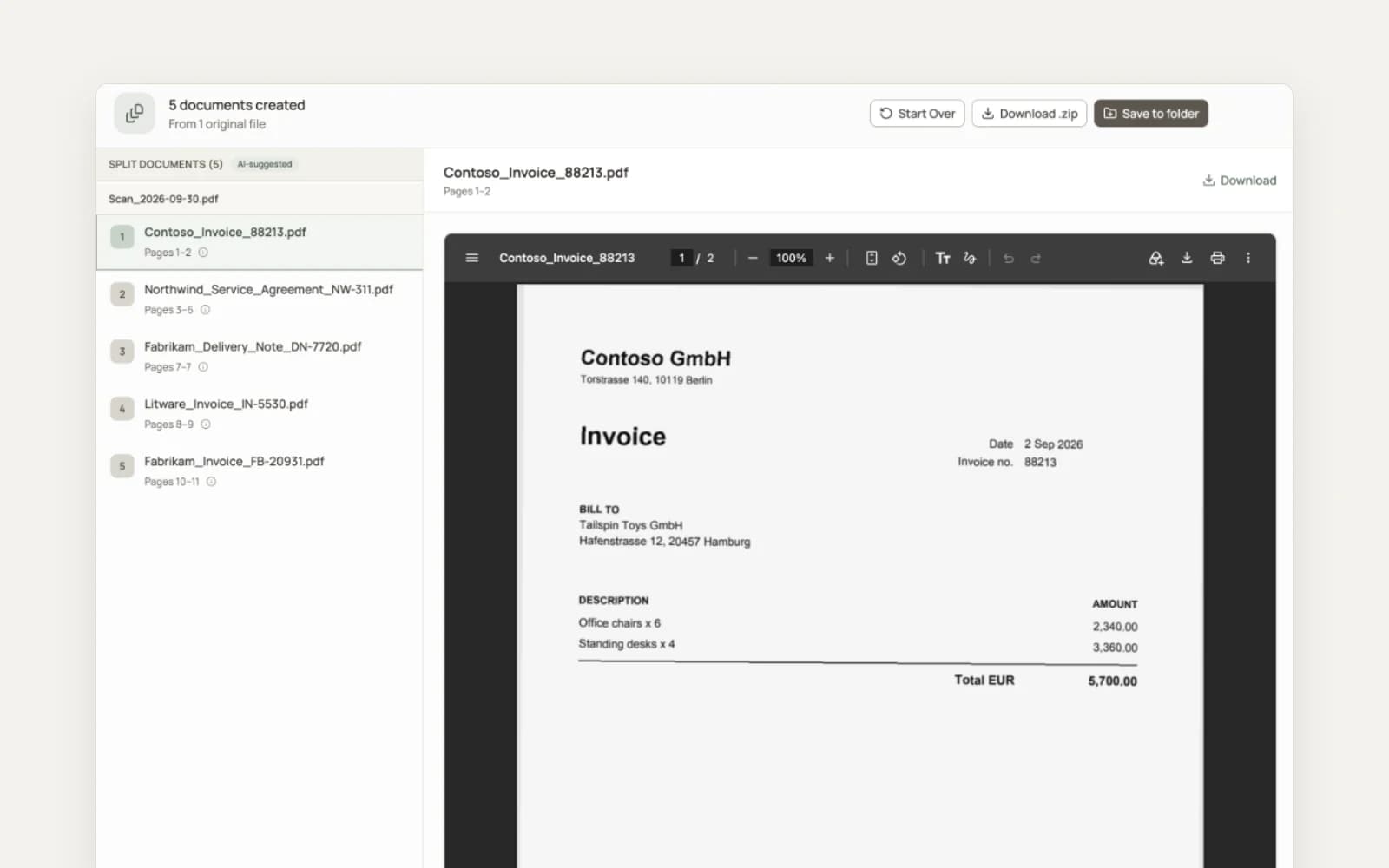
You can upload several PDFs in one go in AI mode. When the split is done, download everything as one ZIP, or in browsers that support it, save the files straight into a folder on your computer. It runs in the browser, so it works the same on Windows and on a Mac.
Worked Example: Split a 200-Page PDF Into 200 Files Named by Vendor
A question on the MrExcel forum describes this exact job. The asker has a 200-page PDF, wants 200 single-page files, and wants each file named after the vendor, whose name sits in the same area of every page. The thread has no replies. Here is how each method handles it.
- Check for text first. Try to select the vendor name with the text cursor. If it highlights, text-based tools can read it. If it does not, the file is a scan, and AutoSplit, Gillmeister and pypdf need OCR first.
- Fixed spot, if the layout never changes. In AutoSplit, split into one page per file and set the naming to "Text From Location" with a rectangle around the vendor name. In PDFsam Visual or deftpdf, select the vendor area, so a new file starts when the name changes. Because the asker's vendor names really are in one area, this route fits them, on Windows with Acrobat or with PDFsam Visual on any system.
- Script, if you code. In the pypdf sketch, start a new part on every page and match the vendor line. Two pages from the same vendor collide, which the page-range suffix handles:
Contoso_p12.pdfandContoso_p57.pdf. - AI, if the area moves or the pages are scans. Upload the PDF to renamed.to and write the instruction "every page is a separate document". Each page is named from its own content, and repeat vendors get the page suffix, such as
_p12. If some vendors' documents run over two pages, leave the instruction empty or pick the invoices recipe, so those pages stay together.
At 1 credit per 3 pages, the 200 pages cost 67 credits on renamed.to. That is more than the 50 free credits, so the first 150 pages fit in the free tier and the rest needs a credit pack. On the fixed-spot route the cost is the AutoSplit or PDFsam Visual license, plus Acrobat for AutoSplit.
Split and Rename PDF Tools Compared
Each row states what the vendor publishes on its own pages, checked in October 2026. "Not stated" means the vendor's page does not say.
| Tool | Where it splits | Documents of different lengths | Mixed layouts | Scans | Names from content | Platform | Cost as published |
|---|---|---|---|---|---|---|---|
| Adobe Acrobat (Split) | Number of pages, file size, top-level bookmarks | Only with one bookmark per document | Does not read layouts | Splits them; names do not come from text | No; a naming convention you set | Desktop app | Standard US$14.99/mo, Pro US$19.99/mo (annual plan) |
| Preview (Mac) | Pages you drag out | Yes, by hand | You read each one | Yes, by hand | No; you type them | Mac | Free with macOS |
| qpdf | Every N pages | No | Does not read layouts | Splits them; names are page ranges | No; page-range names | Command line | Free |
| Evermap AutoSplit | Bookmarks, page ranges, text or pattern, blank pages; Pro: where text at a spot changes | Yes, with the Pro text-change split | No; text must sit at the same spot | After Acrobat OCR | Yes, from a fixed rectangle | Windows, with Acrobat Standard or Pro | From $99, plus Acrobat; 30-day trial |
| PDFsam Visual | When text in a selected area changes | Yes, if the area text changes per document | No; one area | Not stated | Yes, with the [TEXT] placeholder | Windows, macOS, Linux | 14-day trial; subscription or perpetual, price not stated |
| deftpdf Split by Text | A text zone you select, or start/end text rules | Yes, if the zone text differs per document | No; one zone | Not stated | Not stated; result name can be customized | Browser | Free: 1 file, 50 MB; Premium $199.99/yr: 10 files, 2 GB |
| Gillmeister Automatic PDF Processor | Keywords, barcodes, value changes, blank pages, page count, bookmarks | Yes, with keyword or value-change rules | Where the same keyword appears; new wording needs a new rule | After its OCR task | Yes, with a second rename profile | Windows | €89.95/yr for one user; 30-day trial |
| Python + pypdf | Wherever your code says | Yes, with a first-page pattern | One pattern per layout | No; pypdf does no OCR | Yes, from your patterns | Any system with Python | Free |
| renamed.to PDF Split | Where each document ends, read from the content | Yes | Yes; no fixed position | Yes | Yes, each part from its own pages | Browser (Windows, Mac), API, CLI | 1 credit per 3 pages; 50 free credits after sign-up |
Naming Patterns for Split PDF Files
In the fixed-spot tools and in a script, you build the name yourself, so decide the pattern before you split. Start with the field you sort by, which is usually the date in YYYY-MM-DD form, and end with the field that makes the name unique. renamed.to builds each name from the document's own content, such as the vendor, the type, the number and the date, and follows the naming you ask for in the split instruction.
| Bundle | Pattern | Example |
|---|---|---|
| Supplier invoices | Date_Vendor_Invoice_Number | 2026-09-03_Fabrikam_Invoice_10482.pdf |
| Payslips | Employee-ID_Payslip_Month | Employee-0142_Payslip_2026-09.pdf |
| Contracts | Counterparty_Contract-Type_Signing-Date | Woodgrove_Service-Agreement_2026-08-14.pdf |
| Bank statements | Bank_Account-Last-4_Month | Woodgrove-Bank_4417_2026-09.pdf |
| Delivery notes | Date_Supplier_Delivery-Note_Number | 2026-09-11_Tailspin_Delivery-Note_D-2290.pdf |
Use letters, digits, hyphens and underscores. Windows refuses \ / : * ? " < > | in file names, so replace them, and spell out currency symbols. Plan for the two gaps every pattern meets: a document without the field (use a fixed word such as Unknown, so you can find it later) and two documents with the same name (add the page range). For invoice batches in particular, see our guide to invoice naming best practices.
How to Split a PDF Into Multiple Files and Rename Them With renamed.to
- Open the splitter. Sign in and open PDF Split. To try it first, the PDF split page runs a demo on a sample PDF or on your own file up to 25 MB, without an account.
- Upload the bundle. Drop one or more PDFs. The credit cost appears before anything runs.
- Say how to split, or leave it to the AI. Leave the instructions empty, pick a recipe, or write your own rule. Instructions you use are saved for the next batch.
- Check the parts. Each part shows its page range and its new name, and most parts also show the reason for the split. Open any part in the preview.
- Download. Get all parts as one ZIP, or save them straight into a folder.
For setup details, such as recipes, manual mode and credits, read the splitter documentation. To run the same job from your own system, use the PDF split API or the pdf-split command in the CLI.
When the Split or the Names Are Wrong: What to Check
- Is it a scan? Try to select a word on the page. If nothing selects, the PDF has no text layer, and every text-based tool (AutoSplit, Gillmeister, pypdf) needs OCR first. renamed.to reads scans as they are.
- Blank or wrong names from a fixed-spot tool. The box missed the text on some layouts. Check those files for a different template and add a box or rule for it, or move that pile to a method that does not depend on position.
- Two documents in one file. This happens when two invoices from the same vendor follow each other and look alike. Tell the AI what marks a new document, for example "a new invoice number starts a new file".
- One document cut in two. Attachments and terms pages often look like a new document. Write "keep attachments with their letter", or set the split points by hand in manual mode.
- Weak names. A faint or skewed scan gives any reader less to work with. Rescan at a higher resolution and keep the pages straight.
- The file is refused. renamed.to cannot read a PDF that needs a password to open. Save an unprotected copy and upload that.
If your PDFs are already separate and only the names are wrong, you do not need a splitter. Our guide on how to rename PDF files covers that case, and the AI PDF renamer names whole folders by content.
Frequently Asked Questions
How do I split a PDF and rename the files based on their content?
Use a tool that reads the pages, not one that only counts them. Page-range splitters such as Acrobat, Preview and qpdf cut where you tell them and leave the names to you. Fixed-spot tools such as Evermap AutoSplit, PDFsam Visual and deftpdf take the name from text in one area that you mark, which works when every document has the same layout. An AI splitter such as renamed.to finds where each document starts and ends and names each part from what it says, for example the vendor, the document type, the number and the date.
Can Adobe Acrobat split a PDF and name the files by their content?
Not on its own. Acrobat's Split tool divides a PDF by number of pages, file size or top-level bookmarks, and its output options set a naming convention for the parts. Adobe's help page lists no option that takes a name from the page text. On the Adobe community forum, an expert explains that the Action Wizard can save copies under a new name but cannot rename files. The usual add-on is Evermap AutoSplit, a paid Acrobat plug-in for Windows that names each part from text at a fixed spot on its first page.
Can I split a PDF into multiple files with different names for free?
Yes, if you type the names yourself. Preview on a Mac, qpdf and many online splitters cut a PDF into parts at no cost, and you rename each part by hand. A Python script with the free pypdf library can also name the parts from a pattern in the text, if the PDF has a text layer. On renamed.to a free account comes with 50 credits, and splitting costs 1 credit per 3 pages, so the free credits cover 150 pages of AI splitting and naming.
How do I split a PDF when the documents have different numbers of pages?
A split every N pages fails as soon as one document is longer than the others, because every cut after it moves. You need a signal that marks each new document: a bookmark per document, a separator sheet you scan between documents, a text that appears only on first pages (such as "Invoice No."), or a tool that reads the content. renamed.to finds the boundaries from the content, so a two-page invoice next to a one-page invoice needs no setup.
How can I tell if a PDF is a scan, and why does it matter?
Open the PDF and try to select a word with the text cursor. If the word highlights, the PDF has a text layer, and text-based tools can read it. If nothing selects, or the whole page selects as one picture, the PDF is a scan without text, and tools that read text (AutoSplit, Gillmeister, pypdf) find nothing until you run OCR. renamed.to reads scanned pages, so you can upload a scan as it is.
What happens if two split files get the same name?
In most tools the second file overwrites the first or gets a number added, depending on the tool. renamed.to adds the page range to every file in the clash, for example _p13-14, or _p5 for a single page, so no part overwrites another and each name shows which pages the file holds.
Can I split and rename PDFs by content on a Mac?
Yes. Preview splits by hand when you drag page thumbnails to the desktop, and you type each name. PDFsam Visual runs on macOS, Windows and Linux and can name parts from text in a marked area. Evermap AutoSplit and Gillmeister Automatic PDF Processor run on Windows only. renamed.to runs in the browser, so it works the same on a Mac and on Windows.
Can I automate splitting and renaming from my own system?
Yes. The renamed.to PDF split API accepts PDFs up to 100 MB each, in AI mode with optional instructions or in fixed every-N-pages mode, and returns a job you poll for the results. The renamed.to CLI has a pdf-split command for scripts and scheduled jobs. If you write your own script instead, pypdf can split and name files, but it does not read scans.
Key takeaways
- Splitting a PDF and renaming the parts are two jobs. Most splitters do only the first.
- Page-range tools (Acrobat, Preview, qpdf) are exact, but you find every boundary and type every name.
- Fixed-spot tools (Evermap AutoSplit, PDFsam Visual, deftpdf) name parts from text in one area, which works when every document has the same layout.
- A pypdf script splits and names from text patterns, but needs a text layer and one pattern per layout.
- An AI splitter reads each document, cuts where it ends, and names it from its content, including scans and mixed vendors.
- On renamed.to, splitting costs 1 credit per 3 pages, and the 50 free credits cover 150 pages.
Oleksandr Erm
Founder, Renamed.to
Writing about file management, productivity, and automation at Renamed.to.
Further reading
How to Automatically Rename Invoice PDFs: 9 Tools Compared
Automatically rename invoice PDFs by date, vendor and number from email, scans and cloud folders. Nine tools compared on price, scans and multi-invoice PDFs.
Beyond PDF: How We Built the Fastest Office-to-Image Converter for AI Document Processing
Renamed.to now supports Word, Excel, and PowerPoint documents. Learn how our custom office-to-image converter renders documents to images in under a second for AI-powered naming.
Now in 9 Languages: Use Renamed.to Your Way
Renamed.to now speaks your language. Available in English, German, French, Spanish, Portuguese, Italian, Japanese, Korean, and Polish—so you can organize files without the language barrier.
Renamed.to
Split your next scan into named documents
Sign up free for 50 credits, enough for 150 pages. Upload one bundle, let the AI find each document, and download every part with a name drawn from its content.
Try PDF Split