

Accounts payable
How to Automatically Rename Invoice PDFs: 9 Tools Compared
Automatically rename invoice PDFs by date, vendor and number from email, scans and cloud folders. Nine tools compared on price, scans and multi-invoice PDFs.

Oleksandr Erm
•Founder, Renamed.to
Table of Contents
Invoices never arrive with a useful name. Contoso sends Invoice.pdf. Fabrikam sends INV_000231_v2.pdf. The office scanner writes SCAN0042.pdf, sometimes with six invoices in one file, and the Woodgrove supplier portal downloads every bill as document (7).pdf. By month end the folder also holds a tax letter, two credit notes and a reminder that is a copy of an invoice you already have.
To rename invoices automatically, you need two things: one place where every invoice lands, and a tool that reads each document and writes the name from what it finds. The renamed.to invoice renamer does the reading part in a cloud folder you already use. This guide compares nine ways to do it with published prices, then covers what the other guides leave out: scanned stacks, invoices mixed with other mail, duplicates, and what you can check before a name changes.

What an automatically renamed invoice looks like
Every value in a good invoice name is inside the invoice, not on the file: the invoice date, the vendor, the document type and the invoice number. That one fact decides which tools can work. A renamer that only sees the old file name, the download date or the email subject cannot get the invoice number right, however well you configure it.
renamed.to reads each file and writes a name like 2026-10-03_NorthwindTraders_Invoice_INV-4471.pdf: ISO date first, vendor, document type, invoice number. The date is the invoice date from the page, so a scan made on Monday of an invoice dated last Thursday lands in the right week and the right month.
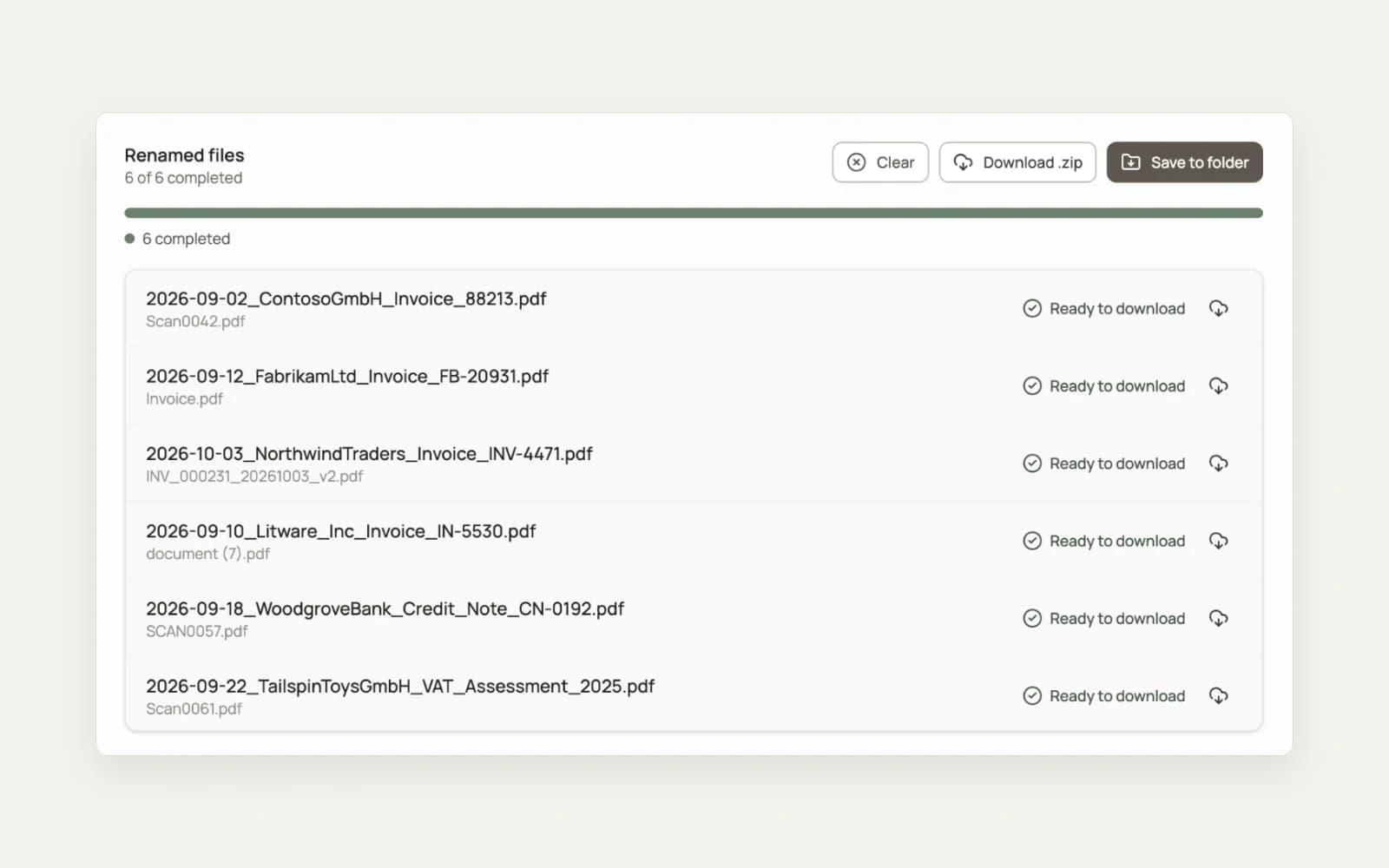
For invoices that keep arriving, connect Google Drive, Dropbox or OneDrive and make your invoice folder a watched folder. Each file added to it is renamed from its content, and each folder has its own naming instructions. The accounting invoices setup page shows the settings for an accounts payable folder.
Invoice renaming software compared
The table compares the tools that come up most when people ask how to rename invoices automatically. Every price and feature comes from the vendor's own website on 18 October 2026. "Not stated" means the vendor's pages do not say, not that the feature is missing.
| Tool | Where files live | Reads scans | Stacked multi-invoice PDF | Watched folders | Custom naming | Price as published |
|---|---|---|---|---|---|---|
| renamed.to | Your cloud (Google Drive, Dropbox, OneDrive), web upload, or your disk with the CLI | Yes: PDF, JPG, PNG, TIFF | Yes: PDF Split cuts it into one named PDF per invoice | Google Drive, Dropbox, OneDrive | Per-folder template and plain-language instructions | 50 free credits after sign-up; $9 for 1,000 documents, pay as you go |
| Filently | Your Google Drive (Dropbox and OneDrive planned) | Yes, OCR | Not stated | Google Drive inbox folder | Configurable naming convention | 25 documents free; Personal $6/month (50 documents); Professional $19/month (250) or $152/year (3,000) |
| Zush | Local app on Mac or Windows | Yes | Not stated | Local folders, including Drive, Dropbox and OneDrive sync folders | Templates, Naming Blocks, custom instructions | 50 renames free; PRO $10/month or $48 one-time, unlimited AI renames |
| Renamer.ai | Web upload, or desktop app on Mac or Windows | Yes, OCR | Not stated | Magic Folders on local folders | Drag-and-drop template builder | 25 files/month free; $9.95/month for 200, $29.95/month for 1,000, $99.95/month for 5,000 (billed annually) |
| AI Renamer | Desktop app on Mac or Windows; local model or vendor cloud | Not stated | Not stated | Not stated | Custom instructions and formatting rules | 10 free credits; $19 one-time with a local model; cloud $10 for 200 credits |
| Hazel | Local app on macOS | Yes, text recognition while matching (Hazel 6) | Not stated | Local folders on the Mac | Rules you write, matching text in the file | $42 single licence or $65 family pack, one-time |
| File Juggler | Local app on Windows | Only after a separate OCR program | Not stated | Local folders, including Drive, Dropbox and OneDrive sync folders | Rules with keywords and dates from the file content | Not stated on its site; 30-day full trial |
| Dext | Uploaded to Dext; the data syncs to your accounting software | Yes, receipt scanner app | Not stated | Not stated | Not stated; it extracts invoice data for your books | $25.21/month billed annually, 250 documents a month (US) |
| Zapier or Power Automate + a parser | Your mailbox and your cloud storage | Power Automate AI Builder invoice model: PDF, JPEG, PNG. Zapier: not stated | You build it | Triggers on new emails or new files | You map the parsed fields into the name | Zapier free for 100 tasks/month, Professional from $19.99/month; Power Automate Premium $15/user/month paid yearly |
When another tool is the better choice
- A large backlog on one computer: Zush. Zush PRO costs $48 once and has no rename limit. Past about 5,300 files, that is less than any per-file price in the table. It renames files on the computer where it runs, so cloud folders are renamed through their local sync copy while that computer is on.
- A few vendors with stable layouts on a Mac: Hazel. Hazel costs $42 once, runs on your Mac, and matches text inside PDFs; Hazel 6 runs text recognition on scans while it matches. A rule per vendor is cheap when the layouts never change, and each new layout needs a new rule. File Juggler does the same on Windows, but it reads a scanned PDF only after a separate OCR program has processed it.
- Invoice data in your books: Dext. If the goal is the invoice data in Xero or QuickBooks Online, not a good file name, Dext extracts the data and syncs it to your accounting software. Its published US price starts at $25.21 a month, billed annually, for 250 documents a month. Its pages describe data extraction, not file naming.
- Review before every rename in Google Drive: Filently. Filently proposes a name and folder for each document and lets you approve, edit or reject it, or switch to automatic filing. It works with Google Drive only today. Its home page lists email forwarding; with renamed.to, email reaches the folder through a Zapier or Power Automate flow.
renamed.to fits when invoices land in a shared cloud folder from many sources. It watches the folder from its own servers, so a file that a colleague, a scanner or a Zap drops in is renamed with no computer of yours switched on. It works on Google Drive, Dropbox and OneDrive, it splits a stacked scan into separate invoices, and it charges per file instead of per month: credits are valid for 12 months, so a quiet month costs nothing.
Rename invoices from email, scanner, portal and cloud folder
Each source needs two answers: what moves the file into one place, and what gives it its name. Moving files is easy and many tools do it. Naming is the part that has to read the invoice.
| Where the invoice comes from | What moves the file | What names it |
|---|---|---|
| Email attachment | A Zapier or Power Automate flow saves the attachment into a cloud folder | The watched folder, from the invoice itself |
| Office scanner | The scan profile saves to a cloud folder or to a folder on a computer | The watched folder, or the CLI watch command on the local folder |
| Scanned stack of many invoices | You upload the one PDF | PDF Split: one PDF per invoice, each named from its pages |
| Supplier portal download | The browser saves into a folder that syncs to Drive, Dropbox or OneDrive | The watched folder that the sync folder belongs to |
| Shared cloud folder | Colleagues, clients or your bookkeeper drop files in | The watched folder; nothing to move |
Email attachments
Zapier has a ready-made template, "Save new Gmail attachments to Google Drive", and Power Automate can run the same flow from Outlook to OneDrive. Filter on the sender or on words such as "invoice", "Rechnung" or "facture" so newsletters stay out. Keep the flow simple. It only moves the file; the watched folder reads the invoice and names it, so you never map parser fields into a file name or update them when a vendor changes its layout.
Office scanners
Most office scanners can save straight to a cloud folder or to a folder on a computer. Point the scan profile for invoices at the watched folder and leave the scanner's own naming alone. If scans land on a computer, the renamed.to CLI watch command renames new files in that folder as they appear:
npx @renamed-to/cli watch ~/Scans --output-dir ~/Invoices --failed-dir ~/Scans/failed --dry-run--dry-run shows the names without changing anything. Remove it once the names look right. --failed-dir moves any file that could not be processed into its own folder, so a failure is a file you can see, not a file that kept its old name.
Supplier portal downloads
Portals name every download the same way. Set the browser to ask where to save each file, and save portal invoices into a folder that the Google Drive, Dropbox or OneDrive desktop app syncs. The file reaches the cloud folder, and the watched folder renames it there.
Rename invoices in Google Drive, Dropbox and OneDrive
A watched folder is where most of the work happens. On Google Drive you connect your account, share the folder with auto@renamed.to as Editor, and add it as a watched folder. Subfolders are watched too, and you can have up to 10 watched folders. Dropbox and OneDrive connect from the Dropbox and OneDrive integration pages.
Each watched folder has its own settings: a filename template, an output language, and a folder structure by date, issuer, type, or a combination such as year then vendor. Files are renamed in place or moved to a destination, so an Inbox folder can feed a tidy Invoices/2026/Contoso tree. Invoices that were in the folder before you connected it are processed with Sync now.
Invoice file naming patterns by purpose
Choose the pattern by the question your team asks the folder most often. Each watched folder has a custom prompt field, written in plain English, that replaces the default pattern. The instructions below are starting points; run a batch, read the names, and tighten the wording where a vendor comes out wrong.
| Purpose | Example name | Instruction for the folder |
|---|---|---|
| Default, sorted by date | 2026-10-03_NorthwindTraders_Invoice_INV-4471.pdf | No instruction needed. |
| Matching bank lines | 2026-10-03_Contoso_INV-4471_1250.00EUR.pdf | Add the total including tax after the invoice number, with a dot as decimal separator and the ISO currency code. |
| Several currencies | 2026-10-03_Fabrikam_INV-90311_480.00USD.pdf | Always write the currency code from the invoice, never a symbol. |
| Several companies in one folder | Litware_2026-10-03_Contoso_INV-4471.pdf | Start the name with the billed company: Litware or Tailspin. |
| Paying by supplier | Contoso_2026-10-03_INV-4471.pdf | Start with the vendor, then the invoice date, then the invoice number. |
| Credit notes kept apart | 2026-10-07_Contoso_Credit-Note_CN-118.pdf | Name credit notes Credit-Note instead of Invoice. |
Two rules hold for every pattern. Write the vendor in one spelling, so add a line such as "Write Contoso Ltd, Contoso Limited and CONTOSO GmbH all as Contoso". Write amounts without a thousands separator, because a comma is a decimal point in half of Europe. The invoice naming best practices guide covers the convention itself in more depth.
A scanned stack of invoices: one PDF per invoice, each named
A sheet feeder turns a pile of paper into one file. Thirty invoices from Northwind, Contoso and Tailspin become SCAN0042.pdf with 54 pages, and a renamer can give that file only one name. A common workaround is two tools: a splitter such as Adobe AutoSplit to cut the file, then a renamer for each part.
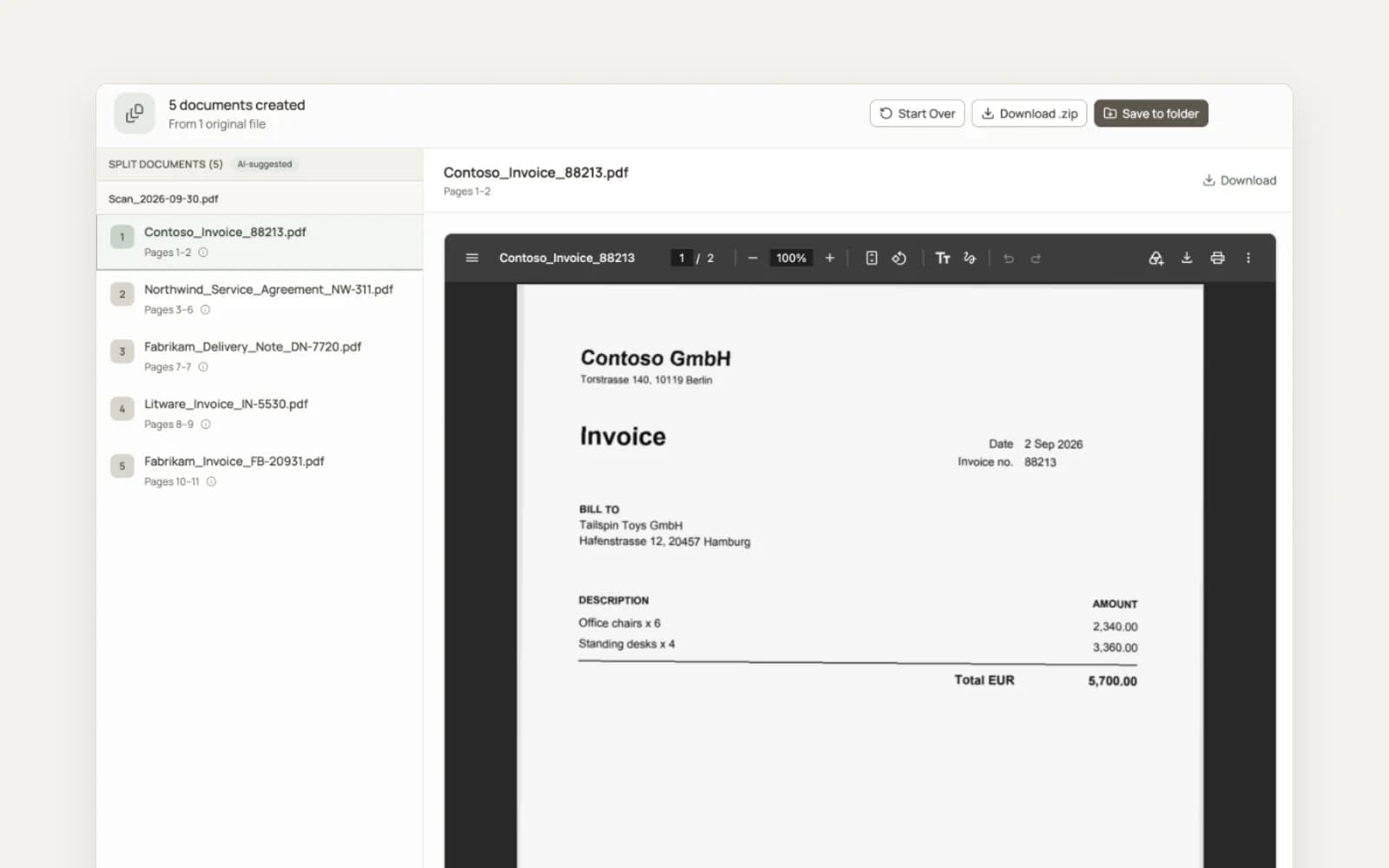
The renamed.to PDF splitter does both in one step. The AI reads the pages, finds where each invoice starts and ends, cuts the scan into one PDF per invoice, and names each part from its own pages. It looks for where each document ends instead of counting pages, so one-page and two-page invoices can share a stack. Each part shows its page range, so a wrong cut is easy to spot before you download. Splitting costs 1 credit per 3 pages, so the 54-page stack costs 18 credits. The guide to splitting a PDF and renaming each file by its content compares the splitting methods in detail.
Invoices mixed with letters, receipts and credit notes
An invoice inbox is never only invoices. The default naming rules require a document type in every name, so an invoice, a receipt, a bank statement and a utility bill carry different words even when they come from the same vendor in the same week. Search the folder for Invoice and the letters stay out of the results.
To separate them on disk as well, set the folder structure to group by type, or by year then type. Each document then moves into its own subfolder, such as 2026/Invoices. Credit notes need one line in the instructions ("Name credit notes Credit-Note instead of Invoice"), so a credit note is never mistaken for a bill you still have to pay.
Duplicates and missing fields
The same invoice often arrives twice: once by email and once from the portal, or again as a reminder. When the name is built from the date, the vendor and the invoice number, both copies get the same name and sit next to each other in a sorted list. Google Drive keeps two files with the same name side by side; Dropbox adds a number to the second one. Either way, treat a repeated name as a question to answer before you pay.
Some invoices lack a field. A small vendor writes no invoice number, or a receipt has no vendor address. Tell the folder what to use instead: "If there is no invoice number, use the order number. If there is neither, leave the number out." A rule that says what to do with a gap gives you a predictable name instead of a guessed one.
What you see before and after a name changes
- Web upload. Your files are not touched. You upload, read the new names in the results list, and download renamed copies one by one or as a ZIP.
- CLI.
--dry-runprints every new name and changes nothing. Files that fail go to the--failed-dirfolder. - Google Drive watched folder. Each folder lists the processed files with the original and the new name. An Undo action on a file restores its original name.
- Dropbox and OneDrive watched folders. Files are renamed as they arrive, and there is no undo button. Start with a test folder and copies of a few invoices, then point the real inbox at it.
Whichever path you use, check the first batch from each new vendor. If a name comes out wrong, change the folder's instructions and reprocess, which costs 1 credit per file.
What it costs to rename 1,000 invoices
Per-file and per-month prices are hard to compare side by side. The table prices one fixed job, 1,000 invoices, at each vendor's published rates.
| Tool | 1,000 invoices | Pricing model |
|---|---|---|
| renamed.to | $9 | 1 credit per file, credits valid 12 months; a stacked scan costs 1 credit per 3 pages |
| Renamer.ai | $29.95 a month | Power User plan, 1,000 files a month, billed annually |
| Filently | $152 a year, which covers up to 3,000 | Professional, $152 a year for 3,000 documents |
| AI Renamer | $50 in cloud credits, or $19 once | $10 per 200 cloud credits; one-time licence with a local model |
| Zush | $48 once, or $10 a month | Unlimited AI renames on PRO, desktop app |
| Hazel | $42 once | One licence, plus the time to write a rule per vendor layout |
| Dext | From $25.21 a month for 250 documents a month | Bookkeeping subscription, billed annually; larger allowances cost more |
| Zapier or Power Automate | From $19.99 a month (Zapier) or $15 per user a month (Power Automate) | Per task or per user; you build and maintain the parsing and naming steps |
The cheapest row depends on where your invoices live. A desktop licence costs less for a large backlog on one machine. A per-file price costs less when volume varies by month or when the files sit in a cloud folder that a team shares.
Renamed invoices, audits and retention
Renaming changes the file name; the document stays as it was. A consistent name makes an archive easier to search and to hand to an auditor, but it does not replace the archive. If you keep records under a retention rule such as Germany's GoBD, ask your tax adviser how your archive records a renamed file, and keep the original invoice unedited. For more on organizing accounting records, see accounting document organization and compliance.
Frequently Asked Questions
How do I automatically rename invoices?
Send every invoice to one cloud folder, then let a tool that reads the document name it. In renamed.to you connect Google Drive, Dropbox or OneDrive and add that folder as a watched folder. Each new file is renamed from its content, for example 2026-10-03_NorthwindTraders_Invoice_INV-4471.pdf: invoice date, vendor, document type and invoice number. For a folder on your own computer, the renamed.to CLI has a watch command that does the same.
Can I rename a PDF invoice automatically based on its content?
Yes, if the tool reads the page. File renamers that work on the old name, the file date or a counter cannot find the invoice number, because it is inside the PDF. AI renamers such as renamed.to, Filently, Zush and Renamer.ai read the document and build the name from the date, vendor and number they find. Rules tools such as Hazel and File Juggler can match text in a PDF, but you write a pattern for each invoice layout.
What is a good file name format for invoices?
Start with the invoice date as YYYY-MM-DD, then the vendor in one fixed spelling, then the invoice number: 2026-10-03_Contoso_INV-4471.pdf. The date sorts the folder, the vendor groups it, and the number makes each file unique. Add the amount and ISO currency code (1250.00EUR) if you match files against bank lines, and put the company first if one folder holds invoices for several companies.
Can Power Automate or Zapier rename invoice PDFs by their content?
Only with an extra step that reads the document. On their own, both rename or move a file with data about the email or the file: the sender, the subject, the date it arrived. To use the invoice date or the invoice number, you add a parser or an AI step, map its fields into the file name, and maintain that mapping. They are good at moving attachments into a folder, and a watched folder can then do the naming.
How do I split a scanned PDF with many invoices into separate files?
Use a splitter that reads the pages. Page-range tools need you to find every boundary and type every name. The renamed.to PDF splitter finds where each invoice starts and ends, cuts the scan into one PDF per invoice, and names each part from its own pages. It costs 1 credit per 3 pages, so a 90-page stack costs 30 credits.
Does automatic renaming work with scanned invoices?
Yes. renamed.to accepts scanned PDFs and images in JPG, PNG and TIFF, as well as text PDFs and Office documents, and reads the scan itself. Rules tools differ: Hazel 6 runs text recognition while it matches a rule, and File Juggler reads a scanned PDF only after a separate OCR program has processed it.
How much does it cost to rename 1,000 invoices?
On renamed.to, one credit per file: 1,000 invoices cost $9 pay as you go, and a new account starts with 50 free credits. Published prices elsewhere include Renamer.ai at $29.95 a month for 1,000 files (billed annually), Filently at $152 a year for 3,000 documents, and Zush at $48 one-time for unlimited renames on a desktop app.
Can I undo an automatic rename?
On Google Drive, yes: each watched folder lists the processed files with the original and the new name, and an Undo action restores the original name. On Dropbox and OneDrive there is no undo button, so test a new folder with copies first. In the web app your files are never changed: you download renamed copies.
Key takeaways
- Every field a good invoice name needs (date, vendor, type, number) is inside the document, so the tool must read the page.
- Move invoices from email, scanners and portals into one cloud folder; a watched folder then names each one from its content.
- A scanned stack of many invoices needs a split first: the renamed.to PDF splitter cuts it into one named PDF per invoice.
- A document type in every name keeps invoices apart from letters, receipts and credit notes.
- Published prices for 1,000 invoices run from $9 per file on renamed.to to monthly plans; a desktop licence such as Zush suits a large backlog on one computer.
Oleksandr Erm
Founder, Renamed.to
Writing about file management, productivity, and automation at Renamed.to.
Further reading
Split a PDF and Rename by Content: 4 Methods Compared
Split a PDF into multiple files and rename each by its content. Compare Acrobat, AutoSplit, Python and AI splitting, with costs, limits and a worked example.
Beyond PDF: How We Built the Fastest Office-to-Image Converter for AI Document Processing
Renamed.to now supports Word, Excel, and PowerPoint documents. Learn how our custom office-to-image converter renders documents to images in under a second for AI-powered naming.
Now in 9 Languages: Use Renamed.to Your Way
Renamed.to now speaks your language. Available in English, German, French, Spanish, Portuguese, Italian, Japanese, Korean, and Polish—so you can organize files without the language barrier.
Renamed.to
Name every invoice the moment it lands
Connect Google Drive, Dropbox or OneDrive, add your invoice folder as a watched folder, and new invoices are renamed from their content. Start with 50 free credits.
Set up a watched folder