
The Ultimate Guide
Automate Dropbox File Organization
A definitive guide to the 3 levels of Dropbox automation. Learn how to move beyond basic folders and build "Self-Driving" archives using AI agents.
Oleksandr Erm
•Founder, Renamed.to
There is a specific kind of dread that comes with opening a shared Dropbox folder. You know what I'm talking about. It's the "Project Alpha" folder that started with good intentions six months ago. Back then, it had three subfolders and a plan.
Today, it's a digital graveyard. It's filled with files named IMG_8823.jpg, Scan_Final_Rev2_REAL_FINAL.pdf, and the always helpful Document(1).docx. There are folders inside folders that shouldn't exist. There are duplicates. There are three versions of the same contract, and nobody knows which one is signed.
We tend to dismiss this as just "clutter," but for businesses, it's a silent productivity killer. How much time does your team spend just looking for things? How many times has a field technician had to resend a site photo because the office couldn't find the first one? How often does your accountant email you asking for "that invoice from October" that you know you uploaded?
The International Data Corporation (IDC) estimates that knowledge workers spend about 2.5 hours per day, or roughly 30% of the workday, searching for information. In a world where storage is cheap, organization has become the expensive bottleneck.
The solution isn't to hire a full-time digital librarian. It's not to hold another team meeting about "file naming protocols" that everyone ignores after a week. The solution is to build a system that organizes itself.
In this comprehensive guide, we will explore the three levels of Dropbox automation. We'll move from the basic native features you likely already have, through the complex logic of connector tools like Zapier, and finally to the modern era of AI Agents. By the end, you will have the blueprint to build a "Self-Driving Folder" that renames, sorts, and indexes your files automatically.
The Core Problem: Managing Entropy
To solve the problem, we first have to understand why it happens. The natural state of any file system is entropy (disorder). When humans interact with computers, we are lazy. We scan a receipt and save it as scan.jpg because typing 2025-12-07_Starbucks_Receipt_ProjectX.jpgtakes effort.
This laziness leads to a lack of Metadata.
“Metadata is a love note to the future.”
When you name a file scan.jpg, you are stripping it of all context. You are putting it in a box without a label. The file system knows it's an image, and it knows when it was created, but it has no idea what it represents.
Traditionally, we tried to solve this with Folders. We created deep hierarchies:/Clients / Acme / 2025 / Invoices / Q4. But folders are rigid. If you have an invoice that applies to two projects, where does it go? If you accidentally drop a file in the wrong folder, it disappears from the "system" entirely.
True automation solves the metadata problem. It extracts the identity of the file (Who is this for? What date is it? What type of document is it?) and embeds that identity into the filename itself. This turns your file list into a searchable database.
The 3 Levels of Support
Let's look at the tools available to us. We can categorize them into three distinct levels of intelligence. For a deeper breakdown of how to choose between them, read our guide on choosing the right file renaming tool.
| Level | Technology | Intelligence | Best For |
|---|---|---|---|
| 1. Native | Dropbox Built-ins | Deterministic (Date/Ext) | Photos & Personal Backups |
| 2. Logic | Zapier / Make | Trigger-Based (If/Then) | Moving files between apps |
| 3. Agents | Renamed.to / AI | Probabilistic (Context) | Business Documents |
Level 1: Dropbox Native Features (The Basics)
Dropbox has realized that organization is a pain point, and they have rolled out several "Automated Folder" features. These are free, built-in, and reliable. However, they are also "blind."
1. Automated Sorting
You can select a folder and tell Dropbox to sort all files added to it by Date. For example, if you upload a file today, it might move it to /2025/12/. This is fantastic for a "Camera Uploads" folder where you just want a chronological archive of photos. But for business? Knowing that a contract was uploaded in December doesn't tell you which client it belongs to.
2. Naming Conventions
Dropbox allows you to apply simple renaming rules. You can say "Rename every file to: [Parent Folder Name] - [Date] - [Original Name]."
If you drag a file named invoice.pdf into a folder named "Project Alpha," it becomesProject Alpha - 2025-12-07 - invoice.pdf. This adds some context, but it relies entirely on you putting the file in the right folder to begin with. If you put it in the wrong folder, it gets the wrong name. It automates specific keystrokes, but it doesn't automate the decision making.
3. Tagging
You can add tags (like #finance, #urgent) to files in Dropbox. While useful for filtering, tags are proprietary metadata. If you download that file and email it to someone, the tags don't travel with it. A filename, on the other hand, is universal.
Level 2: The Logic Layer (Zapier & Make)
For years, power users have turned to integration platforms like Zapier (formerly just for simple tasks) and Make (formerly Integromat) to build more complex workflows.
The premise is Trigger-Action Logic. For a detailed breakdown of how to build these, check out our Zapier file naming playbook.
AND the file name contains "invoice"
THEN move text to Folder B
This works great for deterministic tasks. "If I save an attachment to Gmail labelled 'Receipt', save it to Dropbox." That is a perfect use case.
The "OCR Trap"
The problem arises when you try to use these tools for organization. To rename a PDF based on its contents (e.g., extracting the Invoice Number), you have to build a Rube Goldberg machine.
- Trigger: New File in Dropbox.
- Action 1: Send file to a third-party OCR tool (like PDF.co or Google Cloud Vision).
- Action 2: Receive a giant blob of raw text.
- Action 3: Use Regex (Regular Expressions) to hunt for the pattern "Inv #\d+".
- Action 4: Format that text.
- Action 5: Tell Dropbox to rename the file.
This approach is fragile. If the vendor changes their invoice layout, your Regex breaks. If the OCR misreads a character, the script fails. Plus, you are paying for Zapier tasks, OCR API credits, and maintenance time. It turns into a part-time coding job.
Level 3: AI Agents & Watch Folders (The Solution)
This brings us to the cutting edge: AI Agents. Tools like Renamed.to use Large Language Models (LLMs) to process files closer to how a human does. This is similar to how media asset automation works, but applied to documents.
Probabilistic vs. Deterministic
Old tools (Level 1 & 2) need exact rules. "Find the text after the word 'Total:'".
AI Agents function on probability and context. You can tell an AI: "Find the total amount to be paid." If the document says "Total Balance," "Amount Due," or even "Please pay," the AI understands theintent and extracts the value. It is resilient to format changes.
The "Watch Folder" Architecture
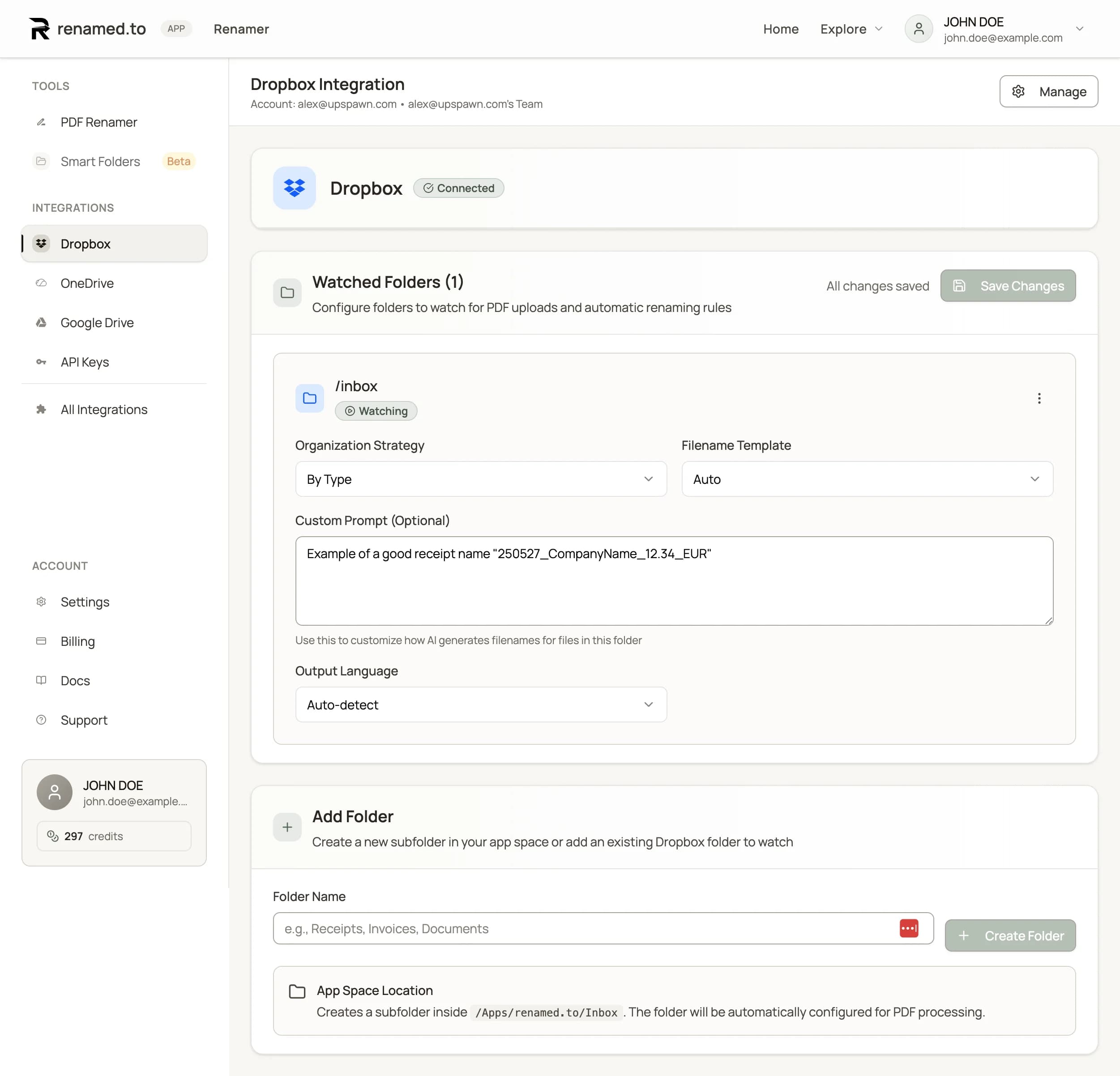
The best way to implement this is with a Watch Folder. You designate a single folder (e.g., _Input) as the "Inbox" for your AI.
- Privacy Check: The AI only sees files in this specific folder, not your entire private Dropbox.
- Trigger: You drop a file in.
- Analysis: The Agent reads the document visually. It identifies the vendor, the date, the project, and the document type.
- Reasoning: It checks your rules ("I need to rename this to [Date]_[Client]_[Type]").
- Execution: It renames the file and moves it to its final destination.
Tutorial: Building Your First "Self-Driving" Folder
Let's walk through setting this up. We will create a system that automatically organizes Client Contracts and Invoices.
Step 1: Create the "Drop Zone"
In your Dropbox root, create a folder named _To_Organize. Using an underscore (_) ensures it stays at the top of your list. This is the only folder you will manually interact with from now on.

Step 2: Connect Renamed.to
Log in to Renamed.to and authenticate with Dropbox. We use the official Dropbox API, which means we adhere to strict security standards. You grant permission specifically for the app to view and manage files.
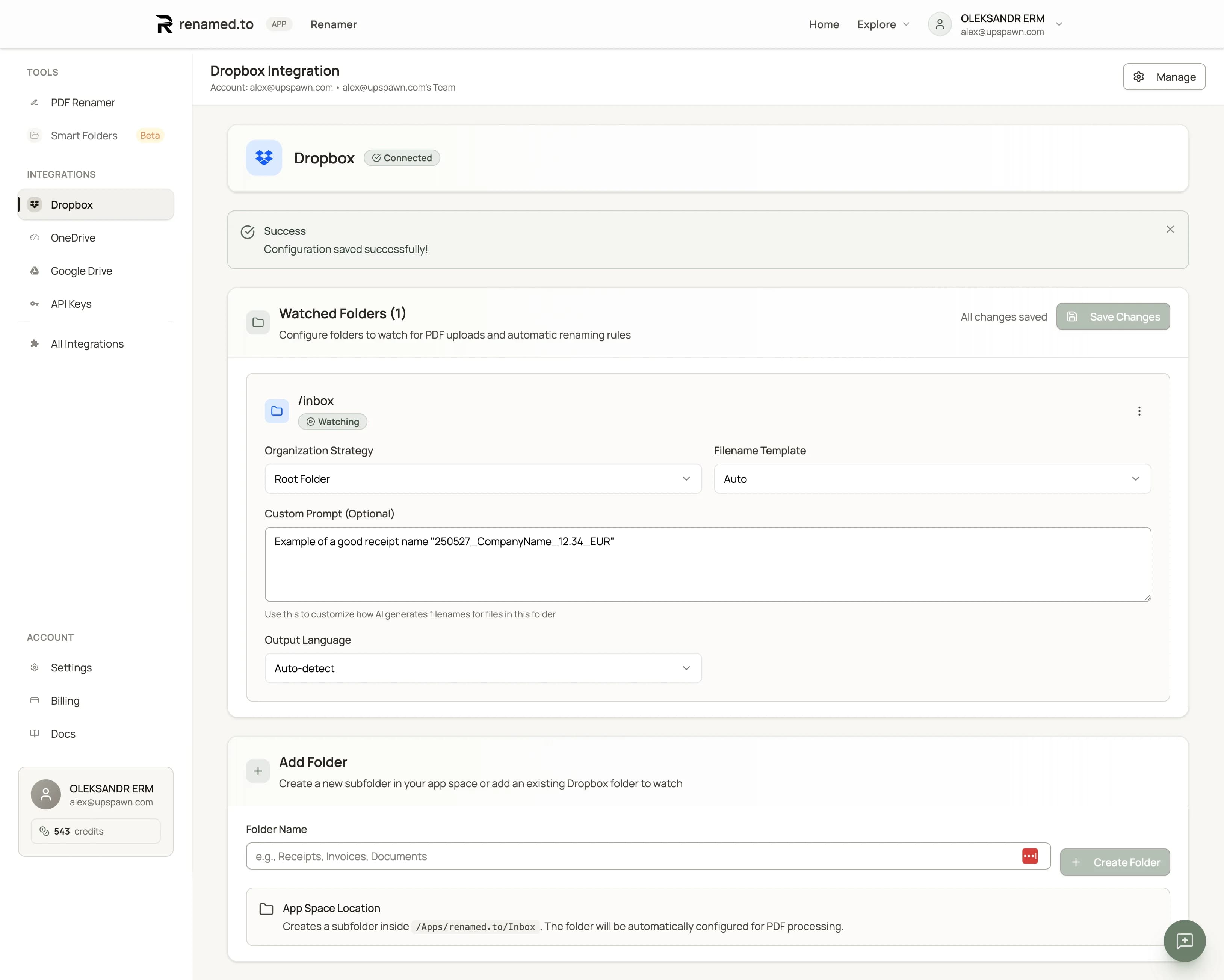
Step 3: Define Your AI Rules
Select your _To_Organize folder. Now, you define the "Blueprint."
Instead of writing code, you write natural language.
[Year]-[Month]-[Day]_[ClientName]_[DocumentType]_[Summary].pdf
Sorting Logic:
Move to folder: /My Files/Business/[ClientName]/[Year]/
Notice the [Summary] tag? That's an AI superpower. You can ask the AI to generate a 3-5 word summary of the document contents and include it in the filename. Now, instead of opening a file to see what it's about, you can just read the filename.
Step 4: Test and Verified
Drag a messy file into the folder—say, scan_004.pdf (which happens to be a contract for the Smith Project signed on Dec 5th).
Within seconds, the file disappears from _To_Organize. Navigate to /Business/Smith Project/2025/. There it is: 2025-12-05_SmithProject_Contract_Signed-Agreement.pdf.
Conclusion: The ROI of Order
Setting up this automation takes about 5 minutes. But the payoff is cumulative. Every single day, you save the 30 seconds it takes to rename a file. You save the 5 minutes it takes to find a file three months from now. And you save the mental energy of dealing with chaos.
Your Dropbox should be a vault of valuable assets, not a junk drawer. By layering AI automation on top of your storage, you transform it from a passive hard drive into an active assistant that keeps your digital life in perfect order.
Try Renamed.to free and build your first self-driving folder today.
Key takeaways
- Digital entropy costs knowledge workers 2.5 hours per day in search time.
- Native Dropbox features (Level 1) handle basic dates but fail at context.
- Connector tools like Zapier (Level 2) are brittle and expensive for content analysis.
- AI Agents (Level 3) use probabilistic reasoning to read, understand, and rename files like a human assistant.
- Implementing a "Watch Folder" architecture keeps your main storage clean and organized automatically.
Oleksandr Erm
Founder, Renamed.to
Writing about file management, productivity, and automation at Renamed.to.
Further reading
Beyond PDF: How We Built the Fastest Office-to-Image Converter for AI Document Processing
Renamed.to now supports Word, Excel, and PowerPoint documents. Learn how our custom office-to-image converter renders documents to images in under a second for AI-powered naming.
Now in 9 Languages: Use Renamed.to Your Way
Renamed.to now speaks your language. Available in English, German, French, Spanish, Portuguese, Italian, Japanese, Korean, and Polish—so you can organize files without the language barrier.
Google Drive Automation: Compared
Compare 4 ways to automate Google Drive file management. Apps Script, Zapier, Make, and AI renaming tested side-by-side with cost, setup time, and limitations.
Renamed.to
Build your automation today
Stop being a digital janitor. Let AI handle your file organization.
Connect Dropbox