
Comparison
Google Drive Automation: Compared
Compare 4 ways to automate Google Drive file management. Apps Script, Zapier, Make, and AI renaming tested side-by-side with cost, setup time, and limitations.
Oleksandr Erm
•Founder, Renamed.to

Why Google Drive Needs an Automation Layer
Every shared Drive eventually devolves into the same mess: SCAN_20240101.pdf, IMG_8921.jpg, Invoice_Final_Final_v2.pdf. Multiply that by a team of five and a few years of accumulated uploads, and you have thousands of files that nobody can find without full-text search. The filenames themselves carry zero useful information.
Google knows this is a problem. Their Gemini for Workspace feature can summarize and search your files, and the newer "Organize with Gemini" feature can sort files into folders. But neither can rename files. The gap between "AI that reads your documents" and "AI that manages your documents" remains wide.
So people build their own solutions. Some write scripts. Some wire up automation platforms. Some use dedicated AI tools. Each approach makes different tradeoffs around cost, complexity, and what it can actually read inside your files. Here are four methods that work, compared side by side.
Method 1 — Google Apps Script
What You Can Build
Apps Script is Google's built-in JavaScript runtime for Workspace automation. You can write a function that iterates over files in a folder and renames them using metadata like creation date, MIME type, or folder name. Here is a basic example:
function renameFilesInFolder() {
  var folder = DriveApp.getFolderById('YOUR_FOLDER_ID');
  var files = folder.getFiles();
  while (files.hasNext()) {
    var file = files.next();
    var name = file.getName();
    // Add date prefix from file metadata
    var date = Utilities.formatDate(
      file.getDateCreated(), 'GMT', 'yyyy-MM-dd'
    );
    file.setName(date + '_' + name);
  }
}
This script adds a date prefix to every file in a folder. You can attach a time-driven trigger to run it hourly or daily. For metadata-based renaming (dates, extensions, folder hierarchy), Apps Script is capable and free.
If you need to read the content inside PDFs — extracting vendor names, invoice numbers, or dates from scanned documents — you would need to integrate the Google Cloud Vision API for OCR. That adds $1.50 per 1,000 pages to your cost and significantly more code to maintain.
Where It Breaks Down
- 6-minute execution limit: Each Apps Script run is capped at 6 minutes. Processing hundreds of files with OCR calls will exceed this quickly, forcing you to build batching and continuation logic.
- No native PDF content reading: Apps Script cannot extract text from PDFs. Without an external OCR API, you are limited to renaming based on file metadata only.
- Fragile maintenance: API changes break scripts silently. There is no error dashboard, no alerting, and no built-in retry logic. You find out something broke when someone notices files stopped being renamed.
- Regex is brittle: If you do integrate OCR, extracting specific fields (invoice totals, vendor names) with regular expressions breaks when document layouts change. Different vendors format invoices differently, and a regex that works for one breaks on another.
- You become a software maintainer: What starts as a 20-line script grows into error handling, logging, batching, and edge case management. You are now maintaining software, not organizing files.
Cost and Setup
- Cost: Free for metadata-based renaming within Google's quotas. Add $1.50 per 1,000 pages if you integrate Cloud Vision OCR.
- Setup time: 2-4 hours for a basic script. 8+ hours if you want robust error handling, batching, and OCR integration.
- Verdict: Viable for developers who need metadata-only renaming on small volumes (under 100 files/month) and are comfortable maintaining code long-term.
Method 2 — Zapier
How Zapier Handles Drive Files
Zapier connects Google Drive to hundreds of other services using trigger-action workflows called Zaps. For file renaming, the typical setup is: trigger on "New File in Google Drive Folder," extract metadata or content in intermediate steps, then use the "Update File" action to apply a new filename.
For content extraction, you have a few options. Zapier's built-in "Extract Data" action can pull structured text from simple documents. For more complex parsing — invoices, receipts, multi-page contracts — you would need a third-party add-on like DocParser or Parseur integrated as an intermediate step. The rename itself is straightforward: Zapier's Google Drive integration supports renaming files in place.
Limitations for File Renaming
- No built-in OCR: Zapier cannot read scanned PDFs or photographed documents. PDF parsing requires a third-party service, adding both cost and complexity.
- Structured text only: Zapier's "Extract Data" action works reasonably well on digitally-created PDFs but struggles with scanned documents, handwritten notes, or inconsistent layouts.
- Task-based pricing adds up fast: Each file processed consumes at least one task, and multi-step Zaps consume one task per step. A 3-step file renaming workflow (detect file, parse content, rename) uses 3 tasks per file.
- Multi-step Zaps require paid plans: The free tier only supports single-step Zaps, which are not useful for file renaming workflows that need intermediate processing.
- Error visibility is limited: Failed renames are easy to miss without setting up custom error notification steps, which consume additional tasks.
Cost and Setup
- Free tier: 5 single-step Zaps, 100 tasks/month. Not enough for file renaming workflows that require multiple steps.
- Professional ($29.99/mo): 750 tasks/month. Processing 500 files/month with a 3-step workflow consumes 1,500 tasks — exceeding this tier and requiring the Team plan at $103.50/month.
- Setup time: 30-60 minutes for a basic flow. 2-3 hours if you integrate PDF parsing through a third-party service.
- Verdict: Good if you already use Zapier for other workflows and can absorb the task costs. Expensive as a standalone file renaming solution, especially at scale.
For a deeper look at using Zapier for file naming workflows, see our Zapier dynamic file naming playbook.
Method 3 — Make (Formerly Integromat)
What Make Does Differently
Make takes a visual approach to automation. Instead of linear trigger-action chains, you build scenarios with branching paths, loops, routers, and error handlers. For Google Drive file renaming, a typical scenario uses the Watch Folder module to detect new files, downloads the file for processing, and then renames it using the Rename File module.
The key advantage over Zapier is granularity. You can add routers that send different file types down different paths — PDFs get OCR processing, images get metadata extraction, and spreadsheets get parsed differently. Make's built-in HTTP module also lets you call external OCR APIs (Google Cloud Vision, Amazon Textract) directly without needing a third-party integration.
Limitations
- Same OCR gap: Like Zapier, Make has no native ability to read content inside PDFs or scanned documents. You still need to call an external OCR API, which adds cost and requires configuring HTTP requests with authentication.
- Steeper learning curve: Scenarios with branching logic, error handlers, and conditional routing feel more like visual programming than simple automation. Non-technical users often hit a wall when workflows get complex.
- Operations-based pricing: Downloading a file, calling an OCR API, and renaming the file counts as 3 operations. This is more transparent than Zapier's task model, but still adds up with volume.
- Debugging complexity: When a scenario fails, understanding why requires navigating Make's execution logs and understanding its data-flow model. Error messages are often technical and require context to interpret.
Cost and Setup
- Free tier: 1,000 operations/month. With a 3-step file renaming scenario, this handles roughly 300 files per month.
- Core plan ($10.59/mo): 10,000 operations/month. Enough for most small to medium file renaming workloads.
- Setup time: 1-2 hours for a basic scenario. 3-4 hours if you integrate external OCR.
- Verdict: Best value among automation platforms if you need more control than Zapier offers. Still limited by the lack of native content reading — the fundamental gap that affects all three scripting/automation approaches.
Method 4 — AI-Powered File Renaming
The three methods above all share the same limitation: they work with file metadata (filename, creation date, MIME type, folder path) but cannot read what is inside a document. AI-powered renaming tools close this gap. They open the document, run OCR on scanned pages, and use language models to extract specific fields — vendor names, invoice dates, total amounts, document types — from the content itself.
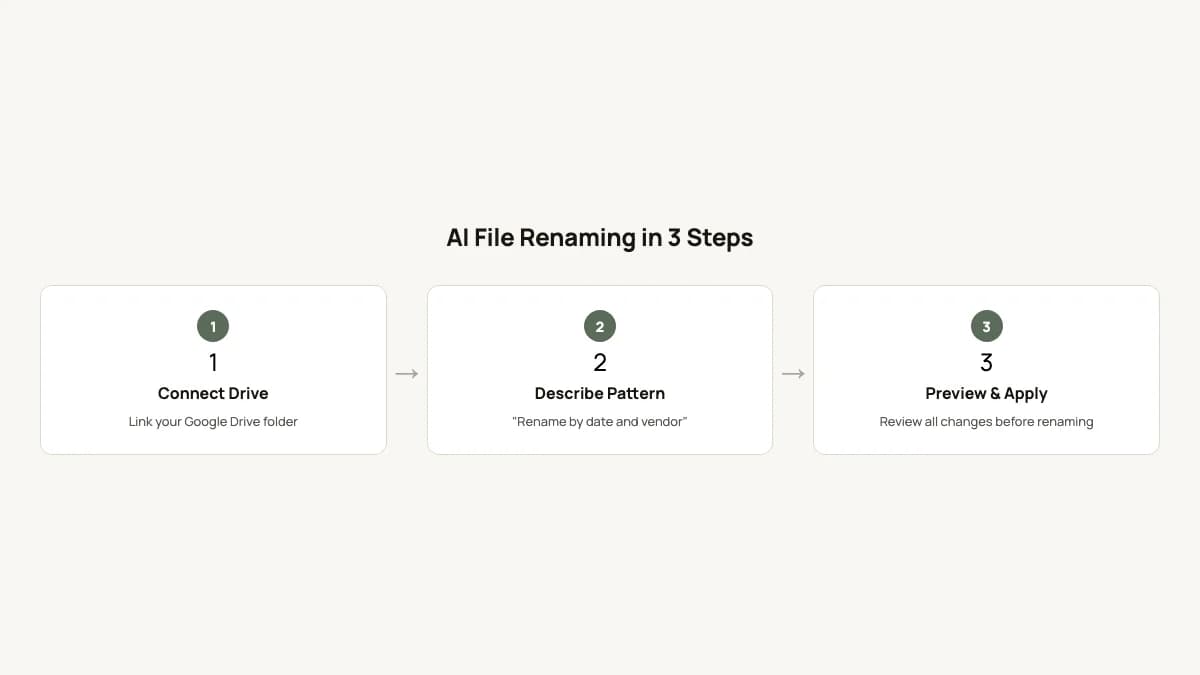
The workflow looks different from scripting or automation platforms. You connect your Google Drive, select a folder, and define a naming pattern in plain English: "Rename to [Date] - [Vendor] - [Type].pdf". The AI reads each file, extracts the relevant fields, and generates a preview of all proposed changes. You review the preview, approve the names that look right, and apply the renames in place — no code, no automation steps to configure.
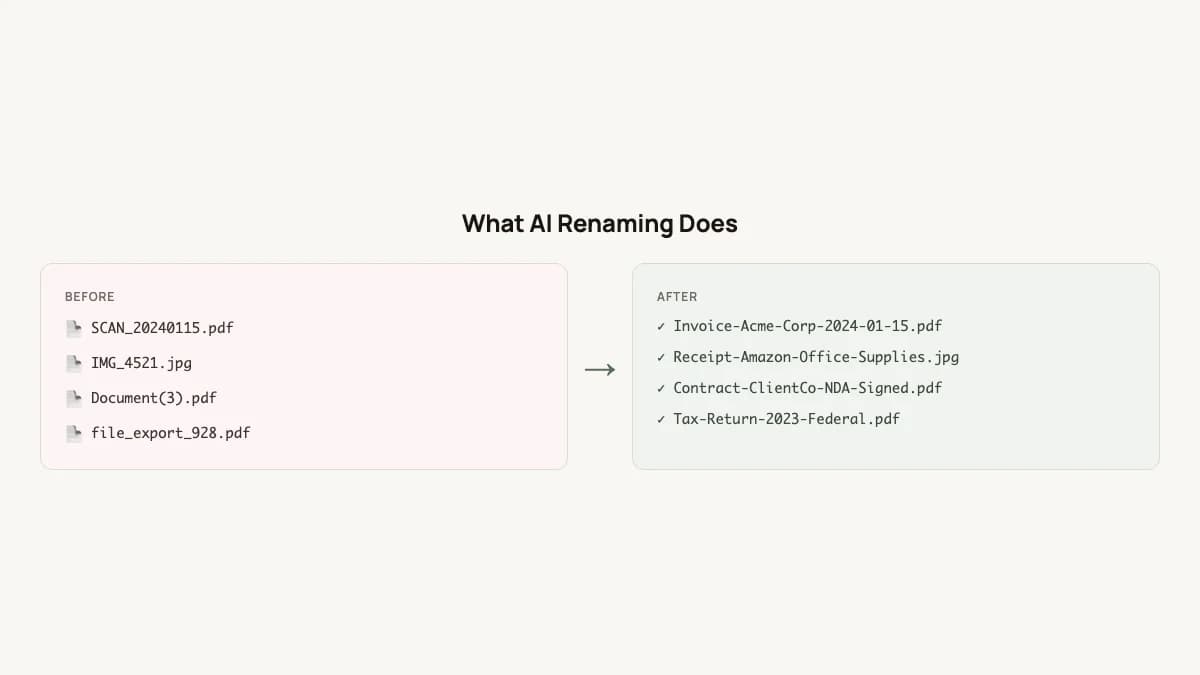
Key capabilities that distinguish this approach:
- Built-in OCR: Handles scanned documents, photos of receipts, and photographed whiteboards without external API integrations.
- Context-aware extraction: Language models can distinguish between "Date of Birth" and "Invoice Date" on the same page, something regex cannot do reliably.
- Watched folders: New files dropped into a designated folder are automatically renamed according to your rules.
- Preview before applying: Every proposed rename is shown for review before any file is actually changed. No surprises, no irreversible batch operations.
- Confidence scoring: When the AI is uncertain about an extraction, it flags the file for manual review instead of guessing.
See how this works in practice with the renamed.to Google Drive integration.
Side-by-Side Comparison
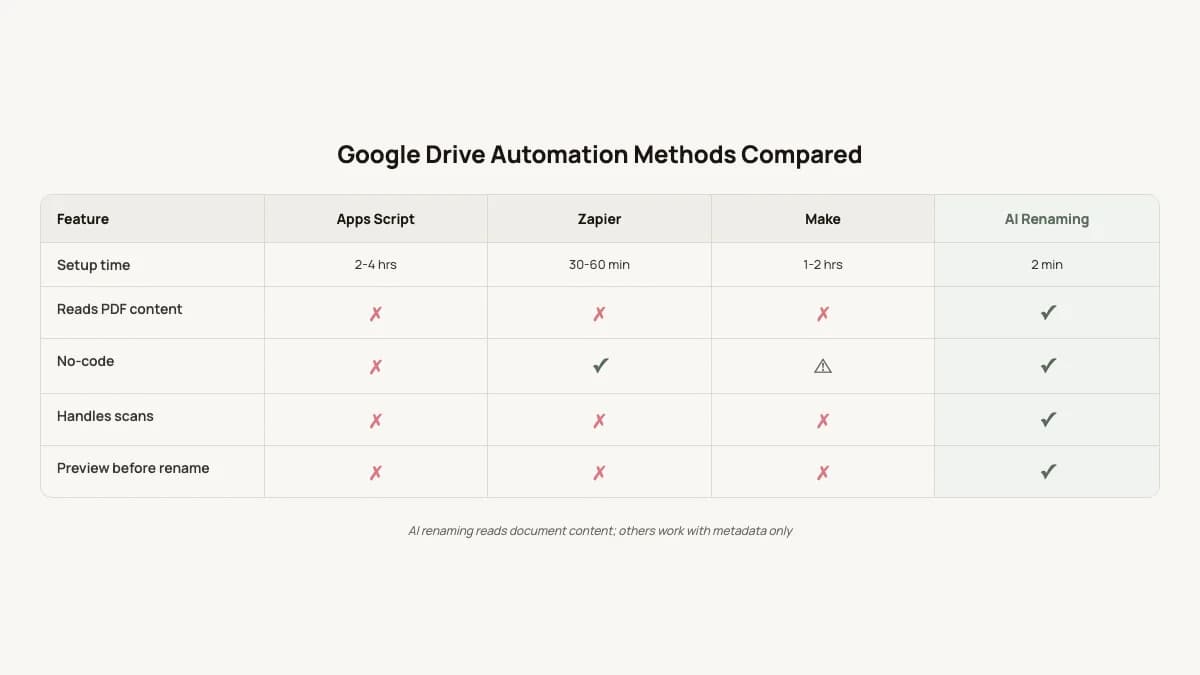
Here is how the four methods compare across the factors that matter most for day-to-day file management:
| Feature | Apps Script | Zapier | Make | AI Renaming |
|---|---|---|---|---|
| Setup time | 2-4 hours | 30-60 min | 1-2 hours | 2 minutes |
| Monthly cost (500 files) | Free* | $103/mo | $10.59/mo | Free (50), $9/mo |
| Reads PDF content | No (needs OCR API) | No (needs add-on) | No (needs API) | Yes (built-in) |
| No-code | No | Yes | Visual code | Yes |
| Handles scanned docs | No | No | No | Yes |
| Preview before rename | No | No | No | Yes |
| Watched folders (auto) | Manual trigger | Yes | Yes | Yes |
| Error handling | Manual | Basic | Advanced | Built-in |
*Free but costs developer time for setup and ongoing maintenance.
Which Method Should You Choose?
Choose Apps Script If...
- You are a developer comfortable with JavaScript and Google's APIs.
- Your renaming rules are based on file metadata only — dates, folder names, extensions — not document content.
- Volume is low (under 100 files per month).
- You do not mind maintaining, debugging, and updating code over time.
Choose Zapier or Make If...
- You need to connect Drive to other services as part of the workflow — Slack notifications when files are renamed, CRM updates, email alerts.
- Your naming logic does not require reading content inside files.
- You already pay for one of these platforms and can absorb the additional task/operation costs.
- Between the two: Make is better value and more flexible. Zapier is easier to learn and has a larger integration library.
Choose AI Renaming If...
- You need content-based naming — extracting dates, vendor names, amounts, or document types from inside PDFs.
- You handle more than 50 files per month consistently.
- Your documents include scanned pages or photographed receipts, invoices, and contracts.
- You want to define naming rules in plain English instead of writing code or configuring visual logic.
If content-based renaming is what you need, see the renamed.to Google Drive integration for a walkthrough of how it works.
Frequently Asked Questions
Can Google Apps Script read the text inside a PDF?
Not natively. Apps Script can access file metadata (name, date, MIME type) but cannot extract text from PDFs. You need to integrate Google Cloud Vision API ($1.50 per 1,000 pages) or a similar OCR service to read document content.
Is Zapier or Make better for Google Drive automation?
Make offers better value — its free tier handles about 300 files/month versus Zapier's 100 tasks. Make also gives you more control with branching and loops. Zapier is easier to learn but costs 3-10x more at scale.
How much does it cost to automate Google Drive file renaming?
Apps Script is free but costs developer time. Zapier runs $30-$100/month depending on volume. Make starts at $10.59/month. AI renaming tools like renamed.to offer 50 free files/month with plans starting at $9/month.
Can I combine multiple methods?
Yes. A common setup is using Zapier or Make to route files into specific folders, then an AI tool to rename them based on content. This separates the routing logic (which automation platforms handle well) from the content extraction (which requires AI).
Key takeaways
- Apps Script is free but requires coding and cannot read PDF content natively.
- Zapier and Make automate file routing but need third-party add-ons for content extraction.
- AI renaming tools read document content (OCR + LLM) and extract specific fields like dates, vendors, and amounts.
- For content-based file naming, AI tools are the only no-code option that works with scanned documents.
Oleksandr Erm
Founder, Renamed.to
Writing about file management, productivity, and automation at Renamed.to.
Further reading
Beyond PDF: How We Built the Fastest Office-to-Image Converter for AI Document Processing
Renamed.to now supports Word, Excel, and PowerPoint documents. Learn how our custom office-to-image converter renders documents to images in under a second for AI-powered naming.
Now in 9 Languages: Use Renamed.to Your Way
Renamed.to now speaks your language. Available in English, German, French, Spanish, Portuguese, Italian, Japanese, Korean, and Polish—so you can organize files without the language barrier.
How to Rename PDF Files (3 Methods Compared)
Learn how to rename PDF files manually, with online tools, or using AI. Compare setup time, cost, and difficulty for each method. Includes best practices for PDF naming conventions.
Renamed.to
Try AI File Renaming
See how renamed.to reads your documents and renames files automatically.
Start Free