
Folder automation
Automate Dropbox Folder Creation
A practical guide to automating Dropbox folder creation: template folder trees, no-code workflows (Zapier/Make), and Dropbox API scripts—plus how to keep files inside those folders consistently named.
Oleksandr Erm
•Founder, Renamed.to
If you run a repeatable workflow (client onboarding, new job setup, new legal matter), you end up building the same Dropbox folder structure over and over. The problem isn't that it takes long once — it's that it becomes a permanent tax on every new project.
This guide shows practical ways to automate Dropbox folder creation, from dead-simple “template folder” duplication to fully programmatic folder trees via Zapier/Make or the Dropbox API. At the end, we'll connect folder creation to the next bottleneck: keeping the files inside those folders named consistently.
Pick the right “folder automation” level
There are three common levels of folder creation automation. Each is useful — and each fails in different ways.
| Approach | Best for | What breaks |
|---|---|---|
| Template folder duplication | Small teams, low volume | Humans forget steps; naming drifts |
| Zapier / Make / n8n | No-code triggers from CRM/forms | Complex trees get brittle; limits/cost |
| Dropbox API / scripts | Engineering-led ops, strict governance | Requires maintenance & auth handling |
Option 1: Create a reusable folder template
The fastest “automation” is to maintain a single template folder tree in Dropbox and duplicate it whenever you need a new workspace.
Example template folder tree:
├─ 01_Admin/
├─ 02_Contracts/
├─ 03_Invoices/
├─ 04_Receipts/
└─ 05_Reports/
Option 2: Automate folder creation with Zapier or Make
If you want folders created automatically when something happens elsewhere (new client row in Airtable, new deal in HubSpot, new job in ServiceTitan), automation platforms are the usual bridge.
Typical workflow:
- Trigger: New client/job created in your source of truth (CRM, form, table).
- Normalize: Create a safe folder name (e.g., slugify client name, add an ID to prevent collisions).
- Create folders: Create the folder tree in Dropbox.
- Share/permissions: Optionally share the new folder with the right team.
If you already use Zapier for file workflows, our Zapier file naming playbook shows how teams move from “folder created” to “files are consistently named” without becoming full-time workflow engineers.
Option 3: Create folders programmatically with the Dropbox API
For strict governance (or very large volumes), the Dropbox API is the most reliable way to generate a folder tree. The core building block is “create folder”, called repeatedly to build the structure for a new client/job/matter.
/{customerId}, not “whatever the sales rep typed”.If you go this route, keep one principle in mind: folder creation is step one. Your real ROI comes from how quickly a teammate can find the right file later.
The hidden bottleneck: what goes inside the folders
Most teams solve folder structure and then immediately fall back into entropy, because files still land as scan.pdf, download(3).pdf, or invoice-final.pdf. The difference between “a folder tree exists” and “a folder system works” is enforced naming.
That's why we recommend pairing folder automation with a watch-folder workflow:
- Create folders when a client/job starts (template, Zapier/Make, or API)
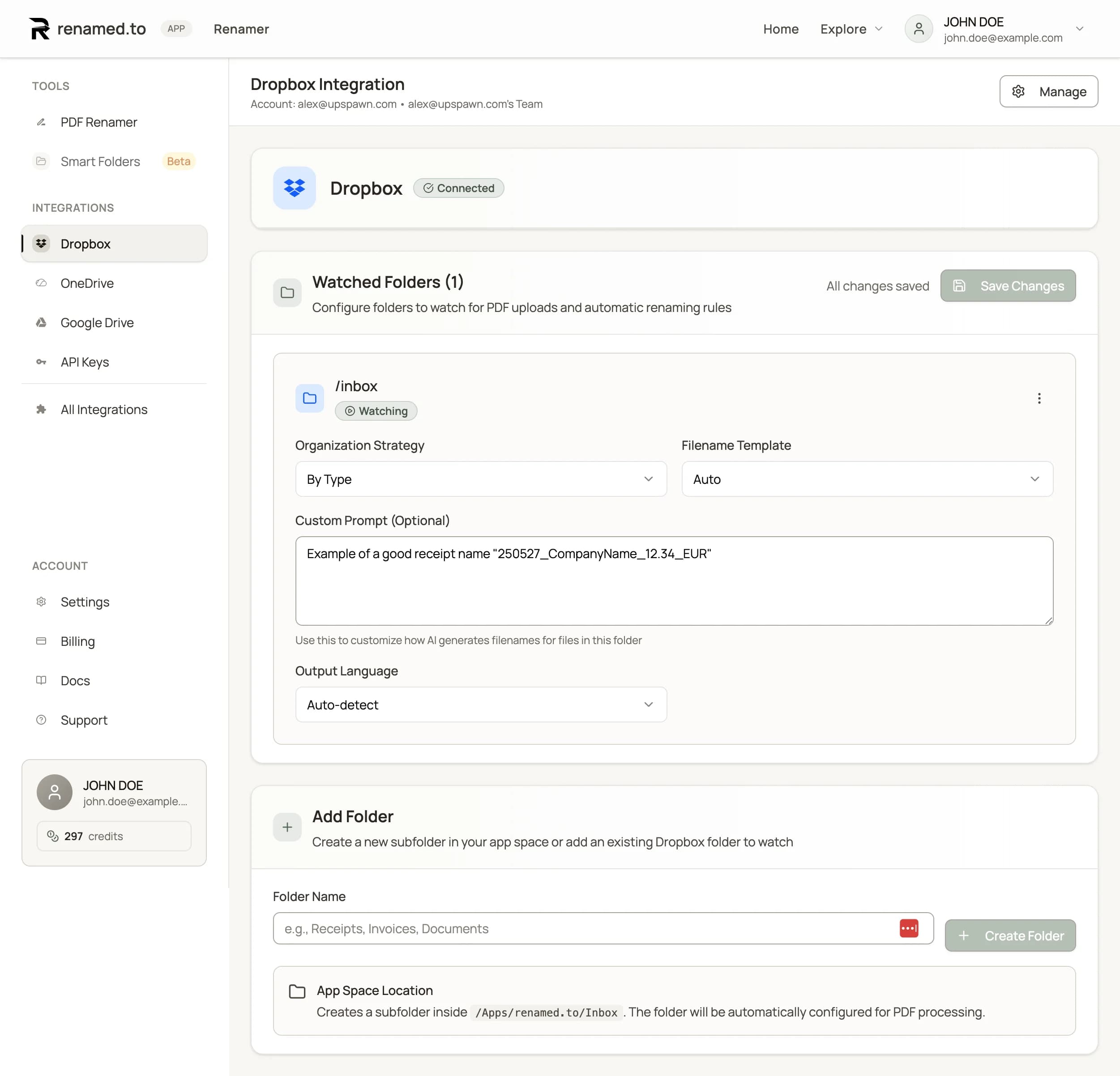
- Use a watched Dropbox folder to rename PDFs based on content and route them into the right subfolder automatically
If you haven't read it yet, start with our Dropbox pillar guide: How to Automate File Organization in Dropbox (Without Coding). Then connect the Dropbox integration to apply naming conventions automatically:
Dropbox integration.
Key takeaways
- Folder automation comes in three levels: template duplication, automation platforms, or the Dropbox API.
- Zapier/Make are great when folder creation needs to react to CRM/form events.
- The Dropbox API is best for strict governance and ID-based folder structures.
- Folder trees don’t solve entropy by themselves—consistent file naming is the real bottleneck.
- Pair folder creation with a watch-folder naming workflow to keep archives searchable.
Oleksandr Erm
Founder, Renamed.to
Writing about file management, productivity, and automation at Renamed.to.
Further reading
Beyond PDF: How We Built the Fastest Office-to-Image Converter for AI Document Processing
Renamed.to now supports Word, Excel, and PowerPoint documents. Learn how our custom office-to-image converter renders documents to images in under a second for AI-powered naming.
Now in 9 Languages: Use Renamed.to Your Way
Renamed.to now speaks your language. Available in English, German, French, Spanish, Portuguese, Italian, Japanese, Korean, and Polish—so you can organize files without the language barrier.
Google Drive Automation: Compared
Compare 4 ways to automate Google Drive file management. Apps Script, Zapier, Make, and AI renaming tested side-by-side with cost, setup time, and limitations.
Renamed.to
Create folders once. Let naming run forever.
Automate Dropbox folder creation, then use watched folders to keep every PDF searchable without manual renaming.
Connect Dropbox