
Dropbox automation
Dropbox Automated vs Watch Folders
Dropbox has automated folders and naming conventions—but watch folders win for business documents. Learn when to use each, and how to combine them for a “self-driving” Dropbox.
Oleksandr Erm
•Founder, Renamed.to
Dropbox now has several “automation” features — automated folders, naming conventions, and organize tools. At the same time, many teams use a watch folder approach: they drop files into a designated folder and an external system renames and routes them.
Both are useful. The trick is knowing which one actually solves your problem — especially if your goal is “make our Dropbox searchable” (not just “remove a few clicks”).
What Dropbox automated folders are good at
Dropbox automated folders are native, reliable, and low-maintenance. They're designed to do predictable transformations inside your Dropbox account.
- Deterministic processing: things like “convert files”, “unzip”, and other consistent actions where the input doesn't need interpretation.
- Light organization: sorting files by date uploaded or applying simple naming conventions based on folder context.
- Low ops overhead: no extra vendor, no extra auth surface area.
What a watch folder is (and why it wins for business docs)
A watch folder is a designated inbox folder that a system monitors. When a new file lands there, the system processes it and then moves it to an organized destination.
For business documents, the critical difference is:
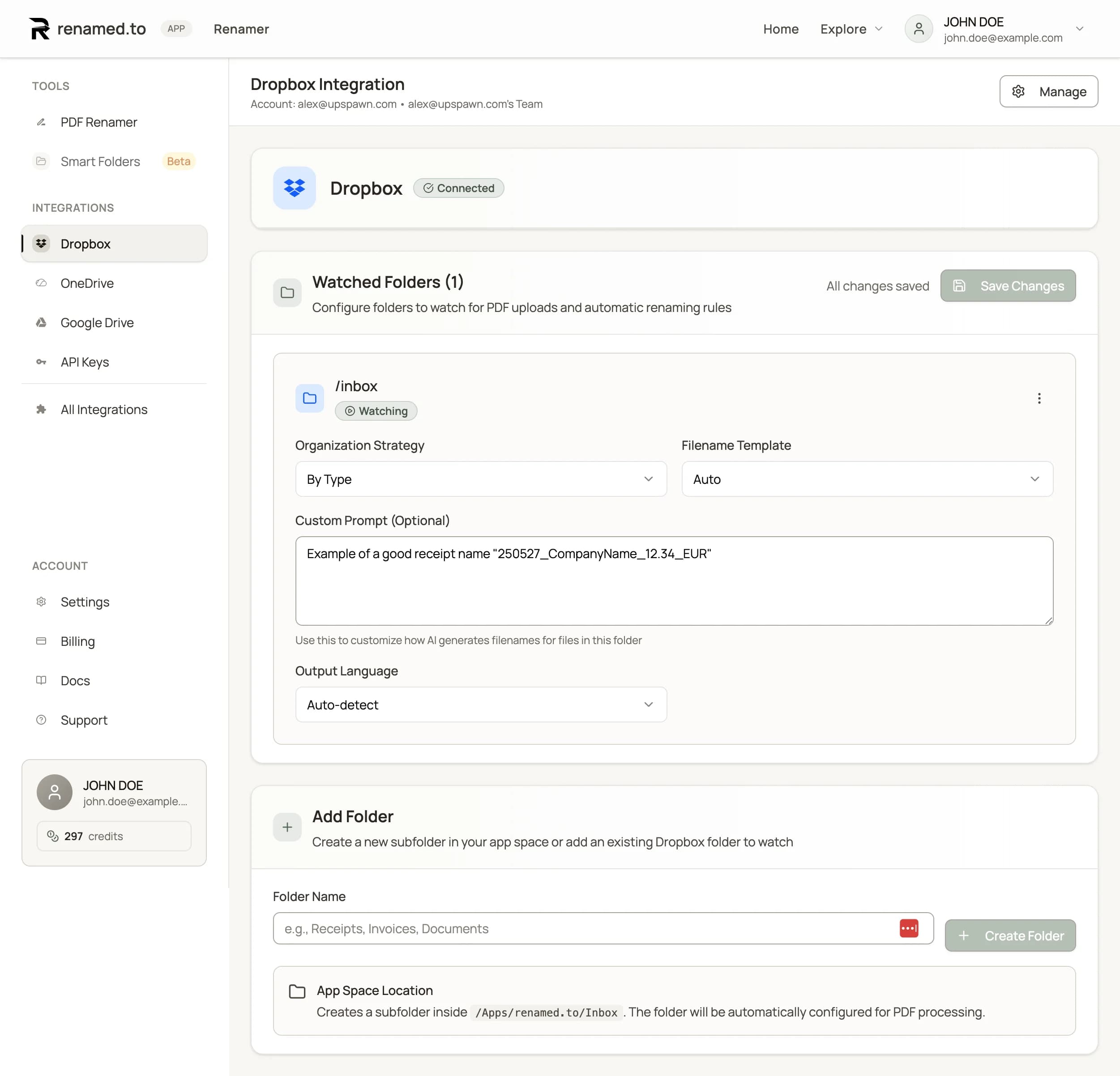
In Renamed.to's Dropbox integration, this happens inside an App Folder inbox/output flow, so it stays scoped and predictable:
- Drop PDFs into
/Inbox - We read the PDF content, generate a filename, and move it into
/Renamed - Optional: add more watched folders with different rules per client/department
If you want the exact setup steps, see:
Dropbox integration and the Dropbox setup guide.
Automated folders vs watch folders: a practical comparison
| Question | Dropbox automated folder | Watch folder |
|---|---|---|
| Can it rename files based on content? | Not reliably | Yes (content-aware) |
| Can it route by client/vendor? | Only if you put files in the right folder first | Yes (extracts entity + routes) |
| Best for | Photos, simple archives, predictable transformations | Invoices, receipts, contracts, job packs |
| Maintenance | Low | Low (once naming rules are set) |
How to combine both (best practice)
The winning setup for most teams is to use Dropbox for what it does best, and use watch folder automation for what humans used to do.
- Use Dropbox automated folders for deterministic transformations (where content doesn't matter).
- Use a watch folder as the “business inbox” so naming decisions happen automatically.
- Standardize filenames using a convention your team agrees on — start with file naming convention examples and keep it Windows-safe.
If you're building the full “self-driving Dropbox” system, our pillar guide walks through the levels of automation end-to-end:
How to Automate File Organization in Dropbox (Without Coding).
Key takeaways
- Dropbox automated folders are best for deterministic actions and basic organization.
- Watch folders are best when filenames and routing depend on document content.
- Most teams should combine both: Dropbox handles transformations, watch folders handle naming decisions.
- A naming convention is only useful when it’s enforced automatically at ingestion time.
Oleksandr Erm
Founder, Renamed.to
Writing about file management, productivity, and automation at Renamed.to.
Further reading
Beyond PDF: How We Built the Fastest Office-to-Image Converter for AI Document Processing
Renamed.to now supports Word, Excel, and PowerPoint documents. Learn how our custom office-to-image converter renders documents to images in under a second for AI-powered naming.
Now in 9 Languages: Use Renamed.to Your Way
Renamed.to now speaks your language. Available in English, German, French, Spanish, Portuguese, Italian, Japanese, Korean, and Polish—so you can organize files without the language barrier.
Google Drive Automation: Compared
Compare 4 ways to automate Google Drive file management. Apps Script, Zapier, Make, and AI renaming tested side-by-side with cost, setup time, and limitations.
Renamed.to
Make Dropbox searchable — automatically
Use a watch folder to rename and route PDFs based on content, not guesses. Set rules once and stop touching filenames.
Connect Dropbox